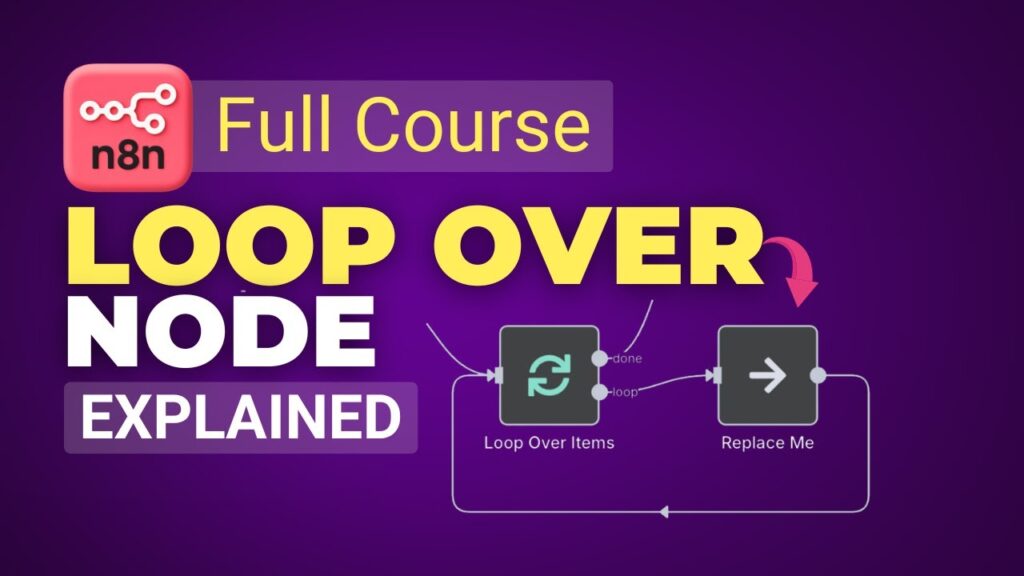
In the world of AI automation, you often deal with large datasets or APIs that have strict limitations. This is where loops become essential. In this tutorial from GenAI Unplugged, we dive into why loops are needed and how to implement them effectively using n8n [00:12].
What is a Loop?
A loop allows your automation to repeat a specific set of actions multiple times until a predefined condition is met. In n8n, this is primarily handled by the Loop Over Items node [00:42].
Why Use Loops?
- Batch Processing: Instead of processing 1,000 items at once (which might crash your workflow), you can process them in manageable batches of 10, 20, or 50 [01:33].
- Handling Rate Limits: Many APIs (like Gmail or Slack) only allow a certain number of requests per second. Looping allows you to process a few items, wait, and then continue, avoiding “Rate Limit” errors [01:39].
- Step-by-Step Logic: Useful for actions that require processing data sequentially, such as uploading multiple email attachments one by one [01:12].
The “Loop Over Items” Node in Action
In the video, we build a workflow that fetches a Gmail message, extracts its attachments, and uploads each image to a Notion Task Board [02:44].
Key Components of the Loop Node:
- The Loop Branch: This is where you connect the actions you want to repeat. For example, an HTTP request to upload a file followed by a Notion node to create a task [07:34].
- The Wait Node: A crucial addition to any loop. Adding a 2-second wait ensures that you don’t overwhelm the destination API [12:16].
- The Done Branch: Once the loop has finished processing all items (e.g., all 5 attachments are uploaded), the workflow moves to this branch to finalize the process or stop [08:37].
Technical Tip: Accessing Binary Data in Loops
When looping over attachments like attachment_0, attachment_1, etc., hardcoding the field name will cause the workflow to fail after the first item.
- Solution: Use an expression like
Object.keys($binary)[0]to dynamically grab the current attachment in the loop, regardless of its index number [13:55].
Common Pitfalls & Error Handling
During the tutorial, the workflow hits a “Bad Request” error because it tries to upload a PDF as an image in Notion [14:32].
- Lesson: Always validate your data inside the loop. Using a Filter Node before the upload step to ensure only
.jpgor.pngfiles proceed can prevent the entire loop from breaking [14:42].
Mastering the Loop Over Items node is the key to moving from simple automations to robust, production-grade workflows that can handle real-world data at scale.
Watch the full tutorial: How to Use Loop Over Items Node in n8n