Automation isn’t just about connecting apps; it’s about how you cleanse, prepare, and process your data. One of the most critical tools in your n8n arsenal for this is the Merge Node.
In this guide, based on a tutorial by GenAI Unplugged, we’ll break down how to use the Merge Node to combine different data streams into one powerful, unified dataset.
Why Use the Merge Node?
In many business workflows, data is scattered. You might have one system that holds Order Headers (customer name, email, order date) and another that holds Order Details (specific products, quantities, and prices). To send a comprehensive confirmation email or update a database, you need to stitch these two pieces together [04:42].
Step 1: Fetching Your Data Streams
In the tutorial, two separate Google Sheets nodes are used:
- Get Orders Data: This fetches the header information (e.g., Order ID, Customer Email) [05:07].
- Get Order Details: This fetches the line items (e.g., Product ID, Product Name, Unit Price) [05:25].
By connecting both to the Merge Node, you create two inputs: Input 1 and Input 2 [09:52].
Step 2: Choosing Your Merge Mode
The Merge Node offers different “modes” depending on how you want the data to interact [10:27]:
- Append: Simply stacks the data. It puts everything from Input 1 at the top and everything from Input 2 at the bottom. This is useful for combining similar lists but not for linking related records [10:35].
- Combine: This is where the magic happens. It allows you to merge matching items together based on a common field (like
orderID) [11:35].
Step 3: Mastering “Combine” (The SQL Equivalent)
If you’ve ever used SQL, these “Output Types” will look familiar. They dictate what happens when data matches—or doesn’t match—between your two inputs:
| Mode | What it does | SQL Equivalent |
| Keep Matches | Only returns items that have a match in both inputs. If an order has no products, it’s removed [13:28]. | Inner Join |
| Keep Non-Matches | Returns only the items that don’t have a corresponding pair in the other stream [14:39]. | Anti-Join |
| Keep Everything | Returns all items from both streams, merging those that match and keeping those that don’t [14:58]. | Full Outer Join |
| Enrich Input 1 | Keeps everything from Input 1 and adds details from Input 2 only where a match exists [15:05]. | Left Join |
| Enrich Input 2 | Keeps everything from Input 2 and adds details from Input 1 only where a match exists [17:02]. | Right Join |
Real-World Example: Matching Order IDs
To link a customer to their products, you configure the node to match on the orderID field.
- The Result: n8n takes the customer details (Input 1) and the product details (Input 2) and creates a single JSON object containing both sets of information for that specific order [15:20].
Conclusion
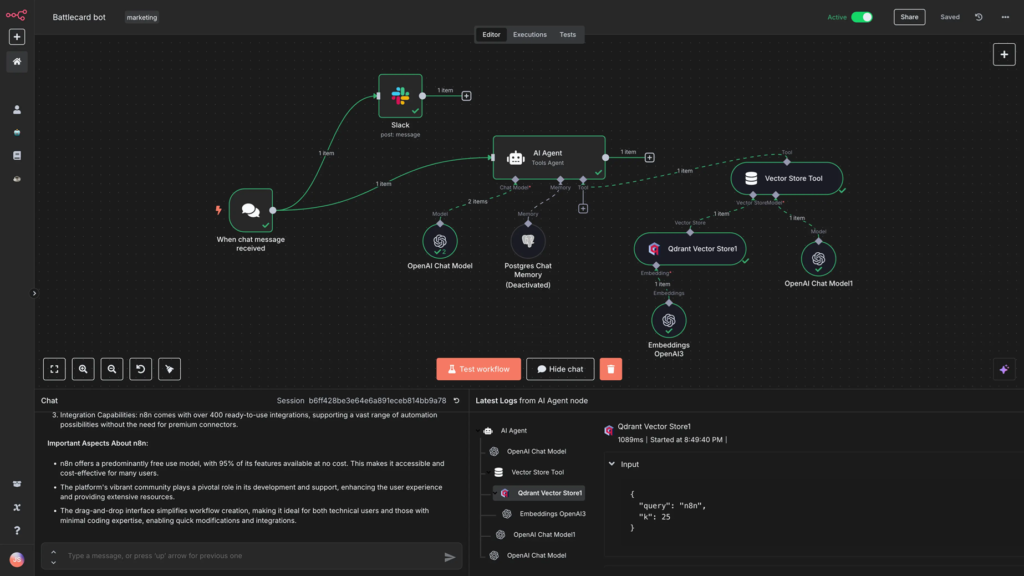
The Merge Node is foundational for building complex AI automations. It ensures that your downstream nodes—whether they are sending Slack messages, emails, or processing data with an AI agent—have all the context they need in a single item.
Watch the full video tutorial here: How to Use Merge Node in n8n